Arduino Uno Q First Look: Setup, Features & What's New


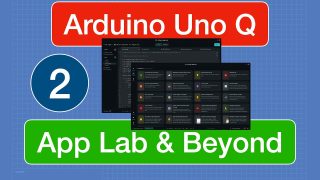
First of 2 videos – Learn about the new Arduino Uno Q, a combination microcontroller and microcomputer.
Article with code: https://dronebotworkshop.com/arduino-uno-q-1
More articles and tutorials: https://dronebotworkshop.com
Join the conversation on the forum: https://forum.dronebotworkshop.com
Subscribe to the newsletter and stay in touch: https://dronebotworkshop.com/subscribe/
In the first of two videos, we’ll take a look at the new Arduino Uno Q, the first board Arduino has produced since being acquired by Qualcomm. I’ll show you the boards’ pinouts and unique architecture, which combines a microcontroller and a microcomputer on an Uno-compatible board.
We’ll update the board’s firmware and install the Arduino App Lab, the new development platform made exclusively for the Uno Q. We’ll also run some sample Apps to get a feel for using App Lab (more about App Lab next week).
We’ll also learn about Apps and how they combine Python and C++ code to create advanced projects. And we’ll learn about Bricks, code “building blocks” that let you easily add sophisticated features to your project.
And, finally, we’ll see how to hook up the Uno Q in three different configurations:
– PC Mode
– Single-Board Computer Mode
– Network Mode
Here is the Table of Contents for today’s video:
00:00 – Introduction
02:17 – Arduino Uno Q
10:36 – Setting up the Uno Q
12:52 – CLI Update
17:11 – App Lab Setup
20:32 – Example – Blink App
21:44 – Apps & Bricks
26:03 – Blink Revisited
29:32 – Weather App
35:11 – SBC Mode
39:30 – Network Mode
41:18 – Conclusion
This is an entirely new class of board, with really nothing to compare it to. There is so much to learn that I’m splitting this into two videos.
Next week, you’ll see how to develop your own Apps and how to hook components up to the Uno Q.
I hope you enjoy the video and that you return next week for part two!
Bill!
source

You might be interested in